Product · What's new

What's new in Brigg

Brigg gets better every week. Here is what we have launched, newest first.

September 2026

1 launch
  1. Sign with Norwegian BankID

    A qualified e-signature when the contract calls for it

    Signing now supports Norwegian BankID, alongside the lighter typed-name signature flow. Pick the method when you send the document; the recipient signs with their BankID as usual, and the finished document carries a qualified electronic signature, legally equivalent to a handwritten one.
August 2026

29 launches
  1. The agent moves and cancels meetings in your calendar

    The whole scheduling conversation, from invite to new time

    The agent could already send calendar invitations in your name. Now it can move and cancel them too, so a back-and-forth about meeting times can be finished without you opening Google Calendar or Outlook yourself. The invitation thread and the meeting link survive a move, and all of it sits behind one permission under Personal › Permissions.

  2. The summary knows who said what

    Names on the voices, and you can correct them yourself

    Meetings Brigg transcribes now get a name on every voice: yours, the person you met one-to-one, and the rest numbered in the order they spoke. Under «View conversation» you give each voice the right name in one pick, and the name carries into the summary, the follow-ups and everything the agent reads.

  3. Duplicate newsletters, documents and websites

    From the «…» menu in the toolbar you can now make a copy of a newsletter, a document or a website, naming the copy as you go. A filed document lands next to its original, and a shared one is visible to everyone in the workspace.

  4. Ask the agent to update hundreds of records at once

    Bulk changes in Customers and your own apps

    «Mark all of these as lost», «move every customer in Bergen to Kari» — the agent now makes the change as one operation, however many records it covers. Each record is validated as before, and you are told about any that could not be changed.

  5. Brief: the agent's summary on customer, contact and meeting cards

    What you need to know, written before you ask

    Every customer card, contact card and meeting now carries a Brief: a short summary the agent writes from what Brigg knows and what it finds online — who they are, what happened last, and what is worth doing now. The brief keeps itself current and suggests next steps you can take with one click.

  6. Ask for data, get a table

    The agent shows rows instead of listing them in the chat

    Ask the agent for «every customer with no activity this year» and you get a table you can sort, scroll and download as CSV — not a list in the chat. The table is always current and has no upper limit, and you can ask the agent to keep working on exactly those rows: «mark all of these as priority».

  7. Several organisations, one sign-in

    Switch workspace without signing out

    If you work for more than one company, you can now add them to the same sign-in — including a workspace you were invited to on a different email address. They all sit in the organisation switcher, one click apart. Nothing is merged; each company's data stays as separate as before.

  8. Brigg Start: from an idea to a company ready to register

    start.brigg.no — no sign-in, for founders in Norway

    Brigg Start takes you from an idea to a company ready for the Norwegian register: a market snapshot with competitors near you, name suggestions checked against the company register, a logo, an available domain, a finished three-page website, and the articles and shareholder agreement for the company form you pick. At the end you get a Brigg workspace with all of it in place, including a checklist for the registration itself.

  9. Quotes from your own templates

    The agent uses your templates, and asks which one

    Ask the agent for a quote — or press «Lag tilbud» in a meeting summary — and the draft is built on the workspace's own templates under Documents › Templates. When there are several, the agent asks which one you want, so the quote looks like yours, not like Brigg's.

  10. Brigg in Swedish and English

    brigg.se and brigg.com

    Brigg now comes in three languages, each on its own domain: brigg.no in Norwegian, brigg.se in Swedish and brigg.com in English. The language you pick follows you into Brigg — the agent speaks the language of the page you came from — and Swedish companies sign up with their own organisationsnummer.

  11. Tailor the menu for your workspace

    Workspace › Menu

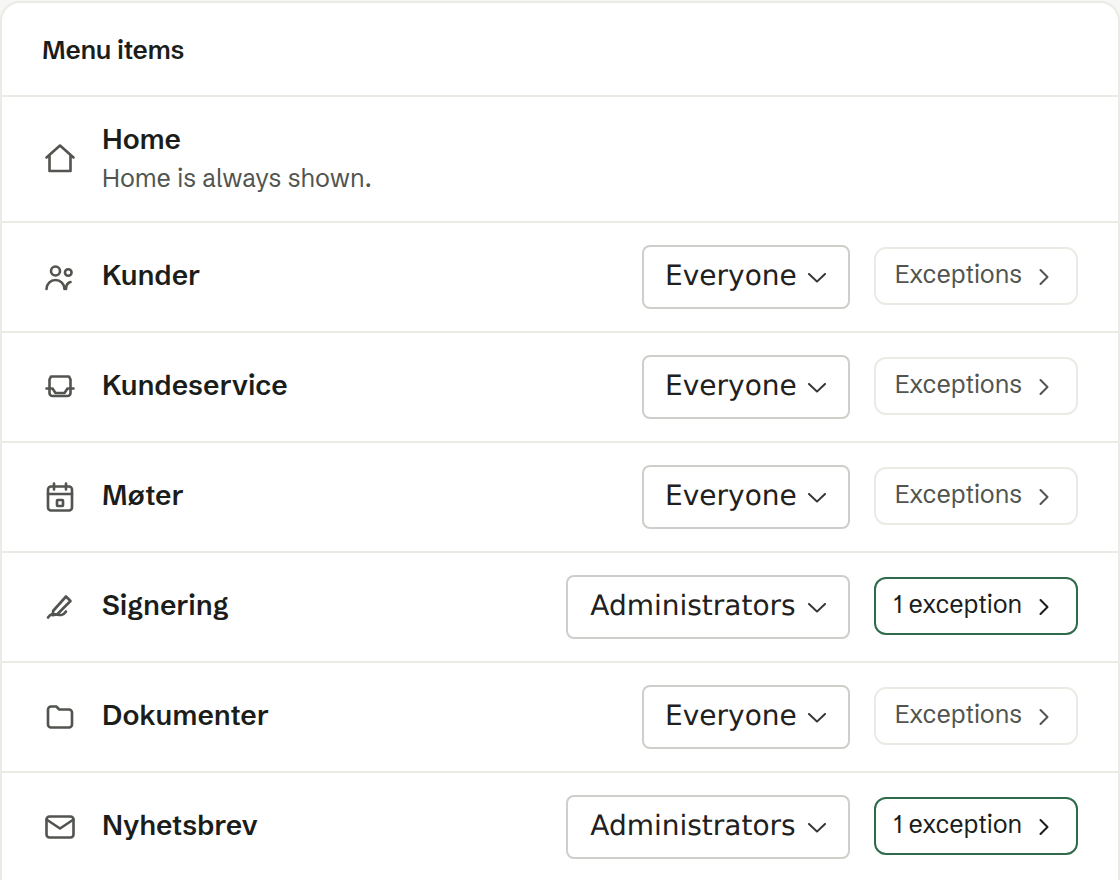
    Admins can now choose which menu items the workspace shows, and to whom: everyone, admins only, or nobody — with exceptions for individual people. A hidden item disappears from the menu while the data and the agent stay as they were, so you can keep the menu tidy without taking access away from anyone.

    Workspace › Menu: every menu item gets an audience — everyone, admins or nobody — with per-person exceptions.
    Workspace › Menu: every menu item gets an audience — everyone, admins or nobody — with per-person exceptions.
  12. Invite the whole team from one paste

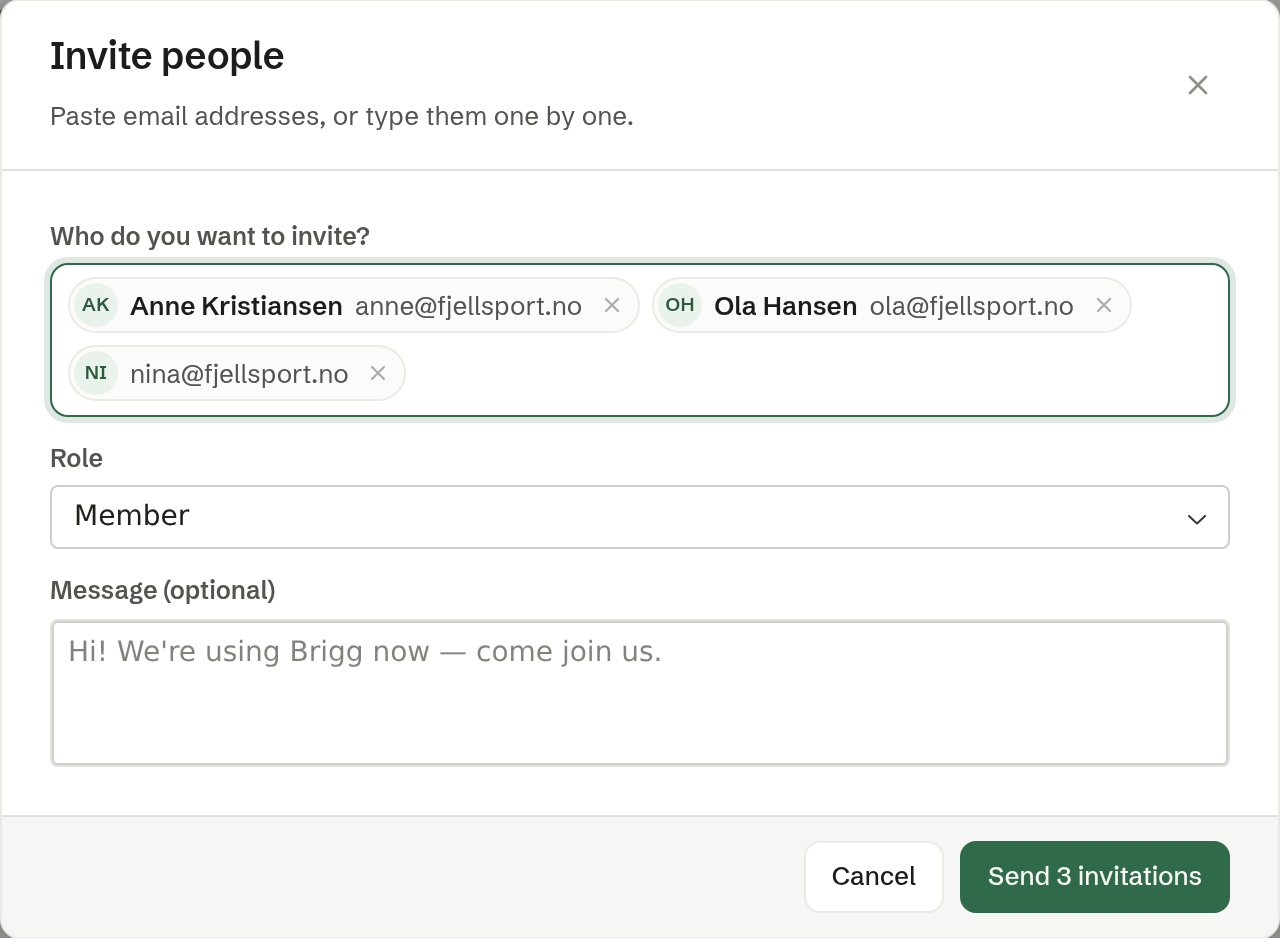
    Paste a list of email addresses — from a spreadsheet, an email thread or a note — and Brigg picks out the addresses and names and creates one invitation per person. Choose a role for everyone, add a personal line, and send.

    One paste became three invitations, with the names picked out of the text.
    One paste became three invitations, with the names picked out of the text.
  13. One booking link, several meeting lengths

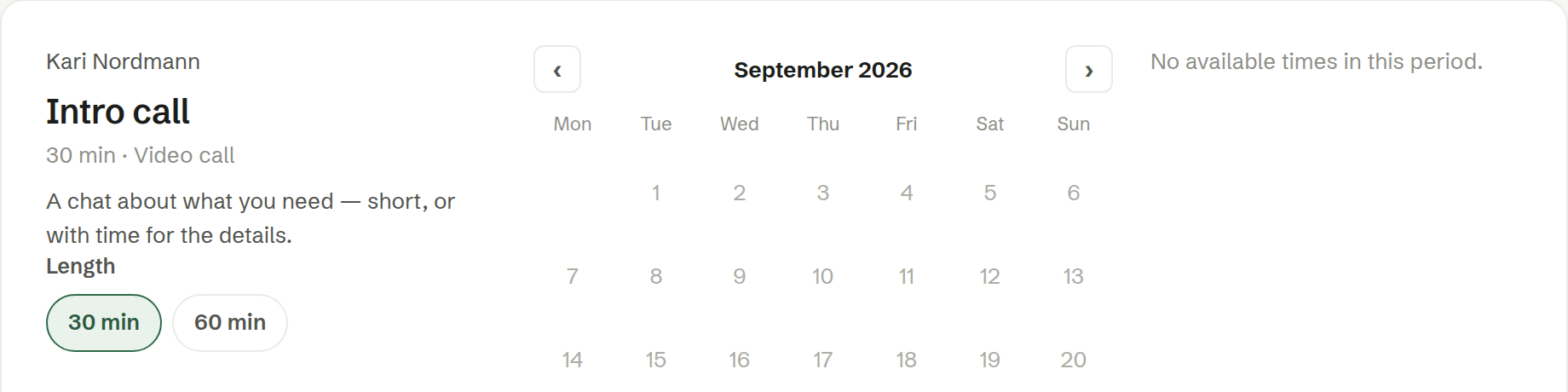
    A booking link can now offer several lengths — 30 minutes or an hour, say — and whoever books picks one on the booking page. Before, that took one link per length.

    The booking page lets the visitor pick 30 or 60 minutes on the same link.
    The booking page lets the visitor pick 30 or 60 minutes on the same link.
  14. You decide what the agent may do in your name

    Personal › Permissions

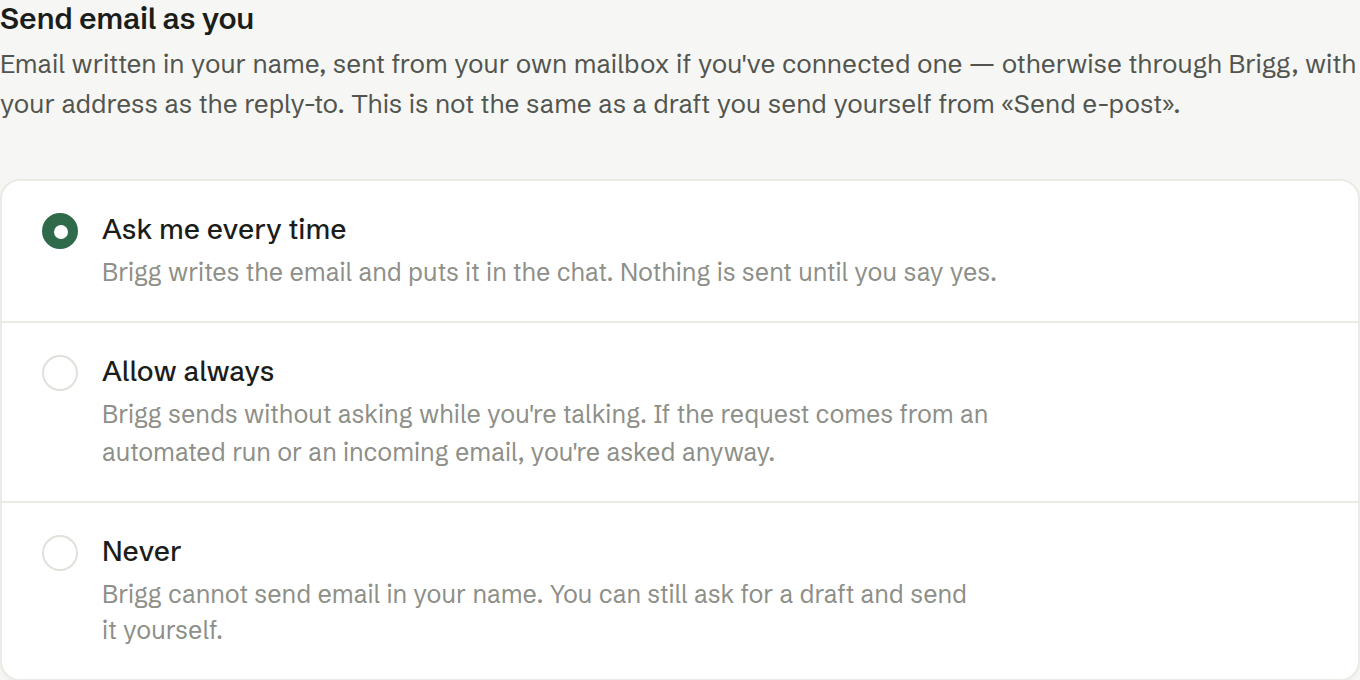
    When the agent wants to send an email from your address or put a meeting in your calendar, you now choose per action: ask me, always allow or never. With «ask me» you get a card in the chat showing exactly what will be sent, and nothing happens until you approve.

    Three choices per permission: ask me every time, always allow, or never.
    Three choices per permission: ask me every time, always allow, or never.
  15. Stats on every newsletter

    Sent, delivered, opened and clicked — live

    A sent newsletter now shows four numbers that update while you watch: how many it went to, how many received it, how many opened it and how many clicked. Open and click rates are measured against confirmed deliveries.

  16. Merge tags in newsletters

    «Hi [firstname]!» — without worrying about the blanks

    Write [firstname], [lastname], [name], [company] or [email] anywhere in a newsletter — the subject line included — and every recipient gets their own. When the detail is missing, the tag disappears along with the space and comma around it, so «Hi [firstname]!» becomes «Hi!» rather than «Hi !».

  17. Brigg for iPhone and iPad

    All of Brigg in your pocket, meeting transcription included

    The Brigg app is on the App Store. You get the whole workspace — customers, documents, the agent — and can transcribe meetings straight from your phone. Open Brigg in the browser on an iPhone and it points you to the app.

  18. Upload a contract, get it signed

    Upload a quote or a contract as PDF or Word and Brigg turns it into a document that can be signed electronically. The signature lines in the original become real signature fields, so the recipient signs in Signing instead of printing.

  19. Webhooks when a meeting is done

    The summary straight into your own systems

    Admins can register a webhook that is called every time a summary is ready, carrying the summary and the transcript. Deliveries are signed and retried on failure — so your CRM, your case system or your spreadsheet gets the meeting without anyone copying it over.

  20. Privacy settings for meetings

    Workspace › Privacy

    A workspace can now decide how long transcripts are kept (30, 90, 180 or 365 days), delete them automatically the moment the summary is written, and remind the host to disclose that the meeting is transcribed with AI. And under Personal › Meetings you can keep Brigg's own windows out of screen sharing on the desktop, so your notes stay yours.

  21. Meetings in the language you actually speak

    Under Personal › Meetings › Meeting languages you pick which of ten languages your meetings are held in, so transcription listens for the right one regardless of the language Brigg is shown in. The summary is written in the meeting's language, not the workspace's — an English meeting gets an English summary.

  22. Dictionary: teach transcription your industry's words

    Product names, jargon and names that always came out wrong can now go in a dictionary — one for the whole workspace and one of your own — that transcription uses in every meeting. The attendees' names and the company you are meeting are added automatically.

  23. Meeting prep: the agent does the research

    Ready before the meeting, without googling

    Before a meeting the agent goes and finds out who you are meeting: the company, the roles, what you have discussed before and what is new online. The result is waiting on the meeting when you open it — and on every attendee's profile.

  24. Document templates in Documents

    Documents › Templates — shared and your own

    The workspace now has a home for templates: quotes, contracts, letters and everything else you produce over and over. Shared templates are available to everyone, personal ones only to you, and «Create document» offers both.

  25. The agent builds apps in the background

    Ask for an app, then get on with your day

    When you ask the agent to build or change an app, the build now runs as its own task that outlives the conversation. You follow its progress on a card in the chat, can close Brigg and come back, and are told when the app is ready to try.

  26. Advice in meetings, while they happen

    Personal › Meetings › Advice during meetings — off by default

    Turn it on and the agent listens along in the meeting and sends short, quiet notifications when they are worth it: an opener drawn from who is in the room, a negotiation move, what a term means, something it looked up. It is built to say little — silence is the default answer — and you decide how much you want.

  27. Products and services in Customers

    A price list, and line items on customers and deals

    Customers has a new Products tab: the workspace's own price list. Every deal and every customer can carry product lines with quantities and prices, so a quote is built from something structured instead of the agent asking about each line.